Tina directed me to 24/7 Mortgage.
Use Tina’s brokerage portal if the loan team directs you there.
Open brokerage portalOpens the 24/7 Mortgage portal in a new tab. A loan-team invitation is required for TL Non-QM intake.
Use Tina’s brokerage portal if the loan team directs you there.
Open brokerage portalOpens the 24/7 Mortgage portal in a new tab. A loan-team invitation is required for TL Non-QM intake.
Ask Tina’s team to open your borrower file.
Request an invitationInvited borrowers can save intake answers, follow document requests and provide requested uploads here. Use the mobile number and email paired by the loan team, then your password and authenticator.
Continue an invited applicationThis is application intake, not a signed loan application or an underwriting decision. Signing and authorizations follow through the brokerage. Its portal remains available below.
Tina directed me to 24/7 Mortgage. The brokerage portal opens on 24-7mortgage.my1003app.com. The portals do not automatically share your application answers or documents.
TL Non-QM collects invited application intake and requested documents. Signing, credit permission, tax authorization and underwriting decisions follow through the brokerage’s workflow. Optional service reminders require SMS consent.
Gather only the documents Tina requests. Checking a box does not upload a document, notify Tina, or submit an application. This checklist resets when you reload.
0 of 4 preparation items checked
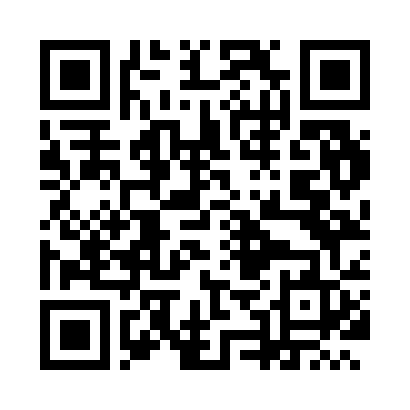
If Tina directs you to the brokerage portal, scan this code or use the link below. Follow that portal’s account and document instructions.
For TL Non-QM intake, use the invitation from your loan team instead. A photo upload or clean file scan does not verify identity or approve a loan.
24-7mortgage.my1003app.com/2097851/register
If your device does not offer a camera option, choose a saved photo or file in the format requested by the loan team.
Camera support depends on your device. Do not send identity documents through the public consultation form or WhatsApp. Use only the requested secure upload process and provide only documents Tina requests.
For a TL Non-QM file, My applications shows your saved or submitted intake and requested documents. Tina’s team reviews the information and follows up about next steps. Signing, authorizations and underwriting status are handled in the brokerage workflow. Submitting intake does not guarantee approval.